
Windows Legacy Print Queue
March 26, 2026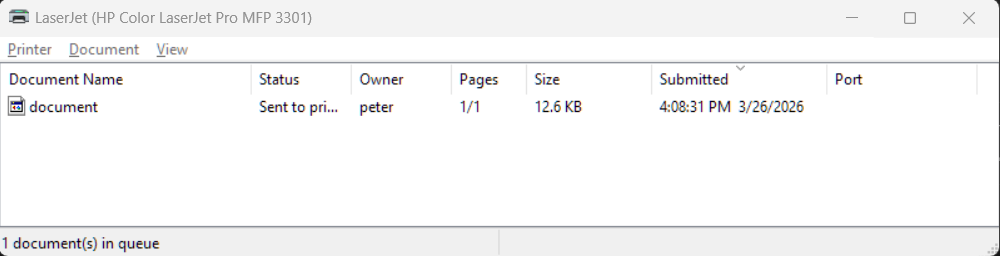
We all know that Windows 11's restructuring of Settings dialogs has significantly enshitified power-user UX. One thing that was seriously affected was the Print Queue. The new one will often hide failed jobs and then refuse to print the latest item. It won't even let you cancel the newest one. When I ran into this, I immediately thought "man, I need the old queue back!" But how?
The old print queue, which usually works.
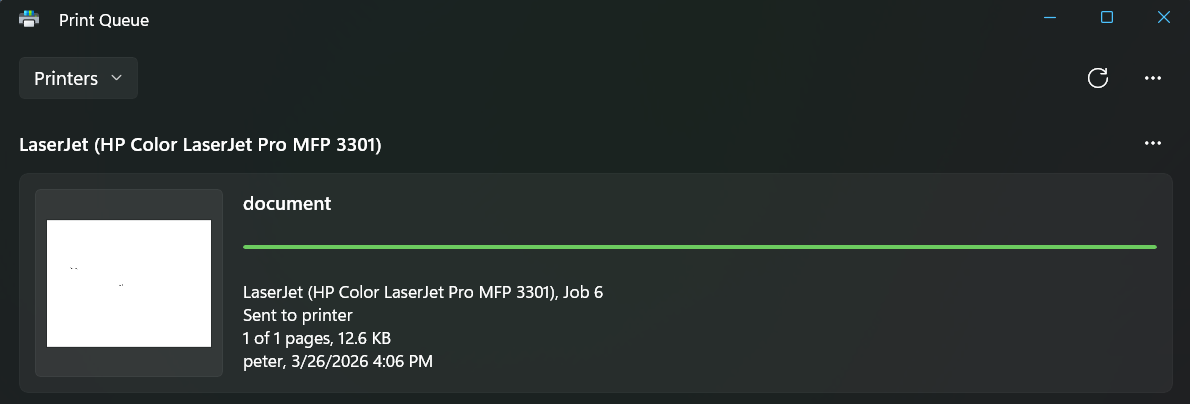 The new print queue, which often hides failed tasks and refuses to cancel hung tasks.
Poking around, I found this:
- Open
Device ManagerbyWindows Key > Device Manager - Double click
Print queues > [$YOUR_PRINTER_NAME](Note your full printer name; we'll need it later) - Go to the
Settingstab - Choose
Devices and Printers Folder
This will open a legacy Control Panel page: Control Panel\Hardware and Sound\Devices and Printers
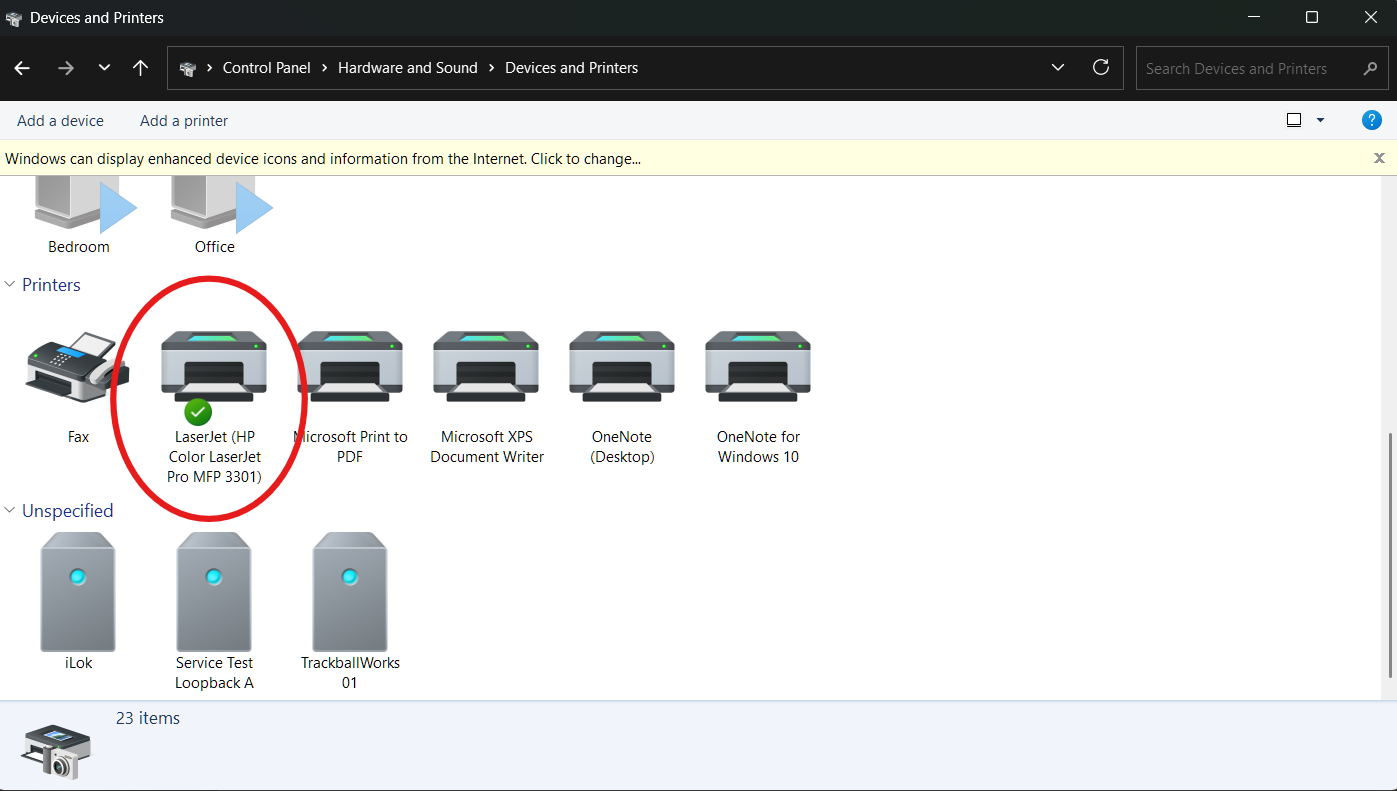 The old Control Panel Devices and Printers screen.
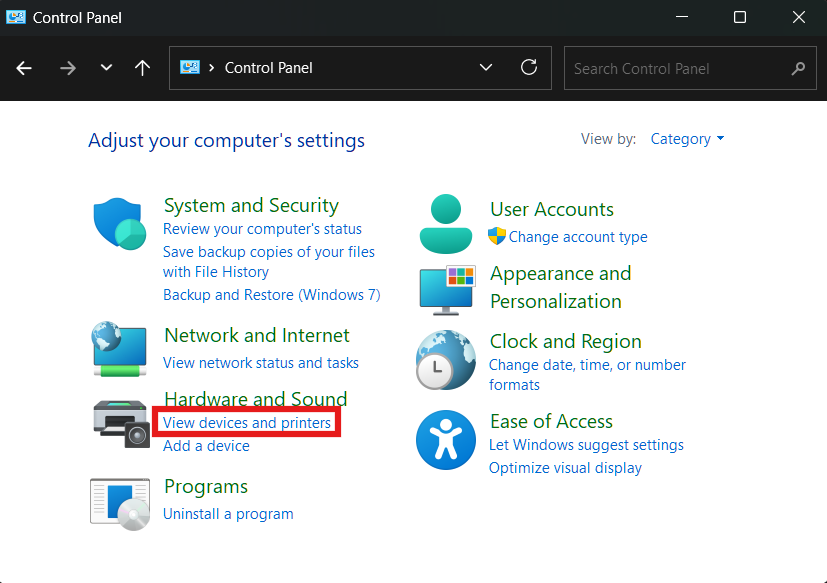 The old Control Panel.
Double-click your printer of choice and the good ol' queue that actually functions adequately opens up. Sure enough, there were two failed jobs that kept on retrying instead of printing the newest item. Canceling them was as easy as Right Click > Cancel!
This dialog box, it turns out, is C:\Windows\System32\rundll32.exe printui.dll,PrintUIEntry (the last two are command line arguments) with the correct printer name entered as an option via /o /n "name" (options, name)
But wait! There must be an easier way to get here! Can't I just:
- Windows Key > Search "control panel" > Open
Control Panel - Select
Hardware and Sound > Devices and Printers?
You would think, but no, they updated that link to the new Settings dialog. You know, the one that doesn't work?
Okay, so how about:
- Control Panel
- Control + L
- Type "Control Panel\Hardware and Sound\Devices and Printers"
Yep, that works fine even though the link was hardcoded to go elsewhere for whatever nonsensical reason!
But, what if you just want to get directly to that specific printer queue? Well, we now have a clear path there:
- Right-click on your Desktop > New > Shortcut
C:\Windows\System32\rundll32.exe printui.dll,PrintUIEntry /o /n "$YOUR_PRINTER_NAME"then click Next- Enter a name. Most of us only use a single printer, so I chose "Print Queue" then click Finish
- I like things to be pretty. Right-click the new link on your
Desktop > Properties - Under the Shortcut tab, press
Change Iconand find a printer icon! It might complain that rundll32.exe doesn't have icons. That's fine, it will give you default Windows icons to choose from. - Place it in
C:\Users\$USERNAME\AppData\Roaming\Microsoft\Windows\Start Menu\Programs. It will now show up in Start Menu Search! - From the search you can also pin to taskbar, add to desktop, etc.
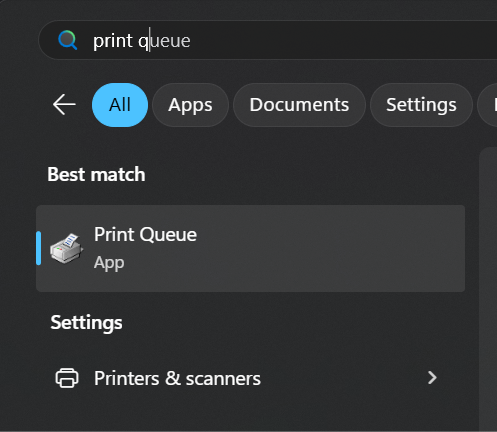 Voila! The old print queue has a shortcut in the start menu!.
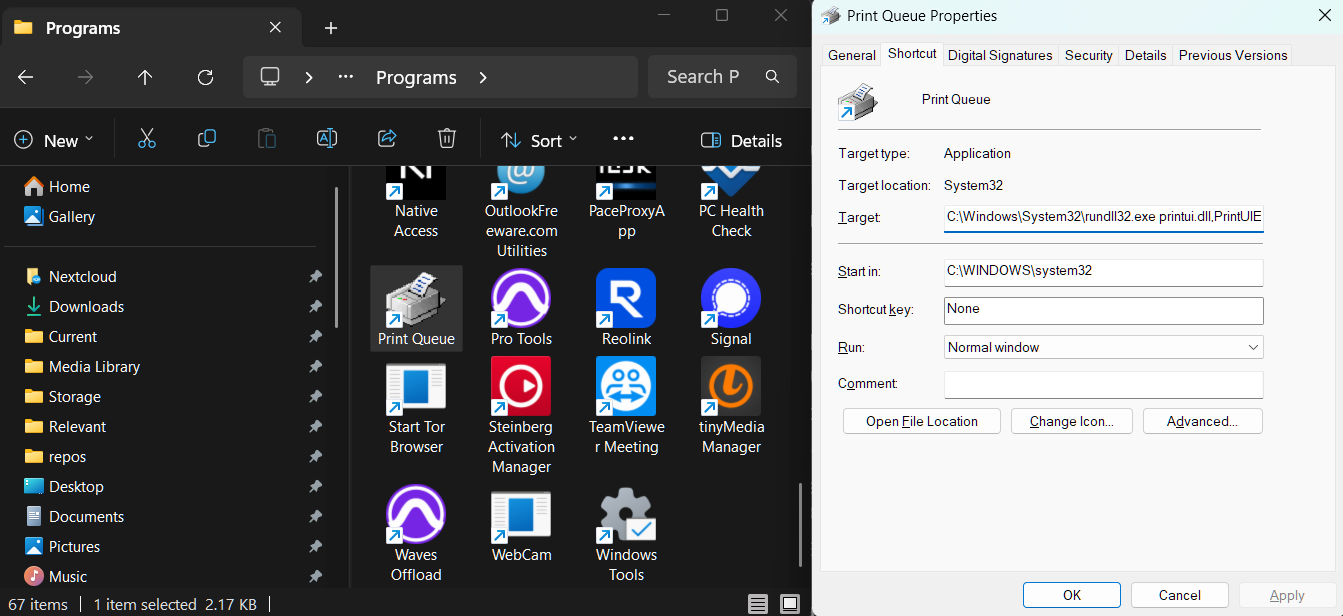 The basic setup.